How to make a QR code for wedding photos, in 4 steps
A QR code for wedding photos opens a shared online album in your guests’ browser. With Snap-e, guests join your event and upload from their phones without installing an app. This guide covers setup, table-card wording and the checks to make before your wedding.
Step by step
Create your event for free
Create a wedding event on Snap-e with your names and date. Check the guest limit, upload limit and event duration before choosing your package. Include time for the parts of your celebration when guests will be sharing photos.
Download your QR code or table card
In your dashboard, customise the QR code and download it as PNG or SVG. Or download a print-ready A5 table card that folds in half, in one or more languages.
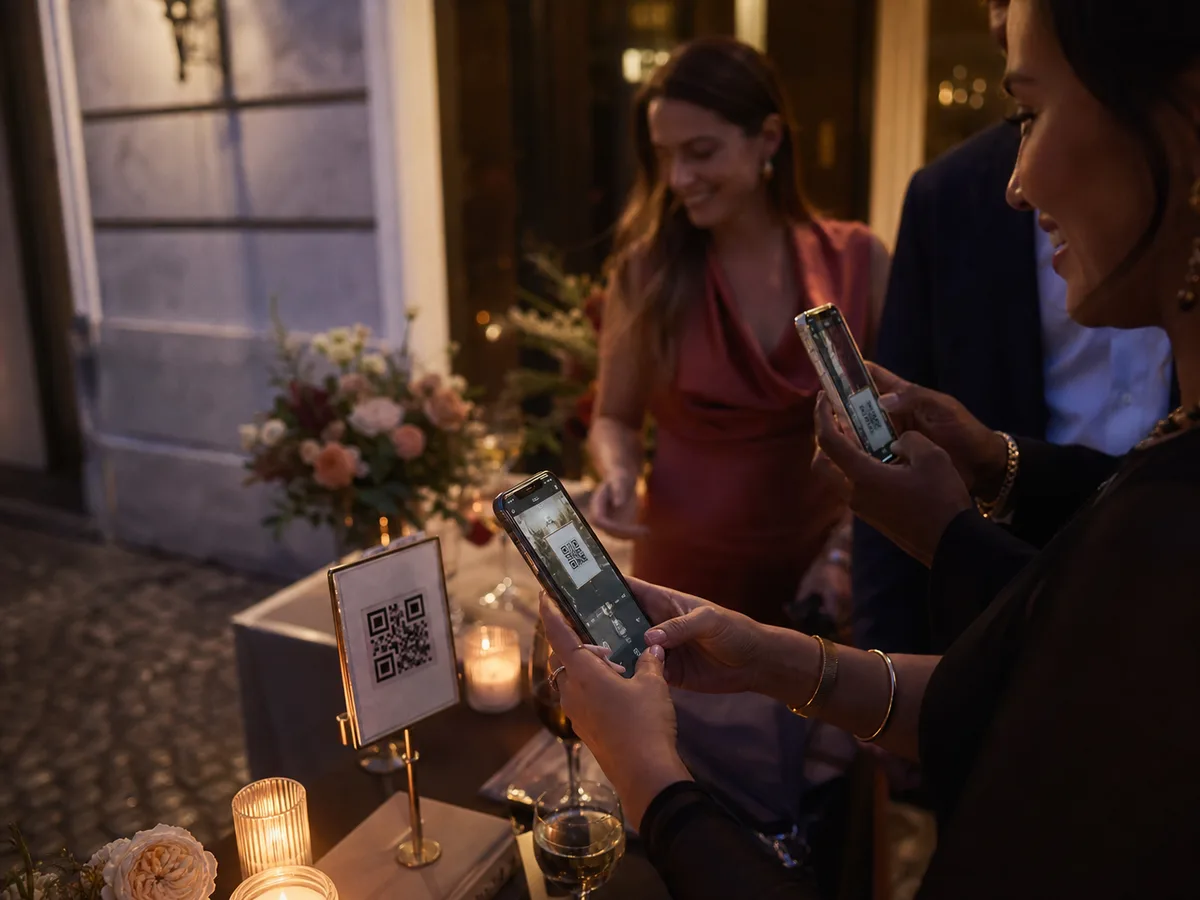
Put the code where guests look
On every table, on the menu, at the entrance or already on the invitation. Add a short line such as: “Scan and share your photos from today.”
Guests scan and upload
Guests scan the code with their phone camera and join the event in their browser. By default, they enter their name and email, then verify a code sent by email. The joining steps depend on the access settings you choose. No app installation is needed.
After the party
Download the collected photos from your dashboard while your event’s download access is available. Keep your own copy: the online gallery is temporary. Check the package details for download access and watermark conditions.
Tips that make the difference
- Print a test card at its final size. Scan it on more than one phone, in lighting similar to the venue, and check that it opens the right event.
- Ask your MC or a friend to explain the QR code during the reception. Place cards where guests have time to read them, such as tables and the guestbook area.
- Check mobile reception and guest Wi-Fi at the venue. Guests need internet access to join and upload; a QR code does not provide a connection.
Frequently asked questions
Do guests need to download an app?
No. Guests open the album in their phone’s browser. By default, joining uses their name, email and an emailed verification code; the steps depend on the event’s access settings.
What is the difference between free and paid?
Packages differ in guest and upload limits, event duration, downloads and extras such as video and the live photo wall. Check the current package details on the wedding page before choosing; a free QR code does not mean unlimited photo storage.
Is a QR code generator enough to collect wedding photos?
A QR code opens a link; it does not store photos or accept uploads by itself. You also need a shared album with guest upload access. On Snap-e, the event provides the album and its QR code opens the guest joining page.
What should I write on a wedding photo QR code sign?
Try: “Help us remember our day. Scan to join our wedding album and share the photos you take.” Add your names so guests recognise the event. Use the same event QR code on each card.
How do I share the album with guests in a message?
Send the guest link as a clickable link rather than only a picture of the QR code. Guests reading the message on their phone can then open it directly. Check the event’s upload deadline before asking for more photos.