Moderation and privacy: you stay in control
When guests share photos freely, you want to know what ends up on the screen and in the album. Snap-e filters inappropriate photos automatically and gives you, as the host, the tools to moderate yourself. You also decide who can join.
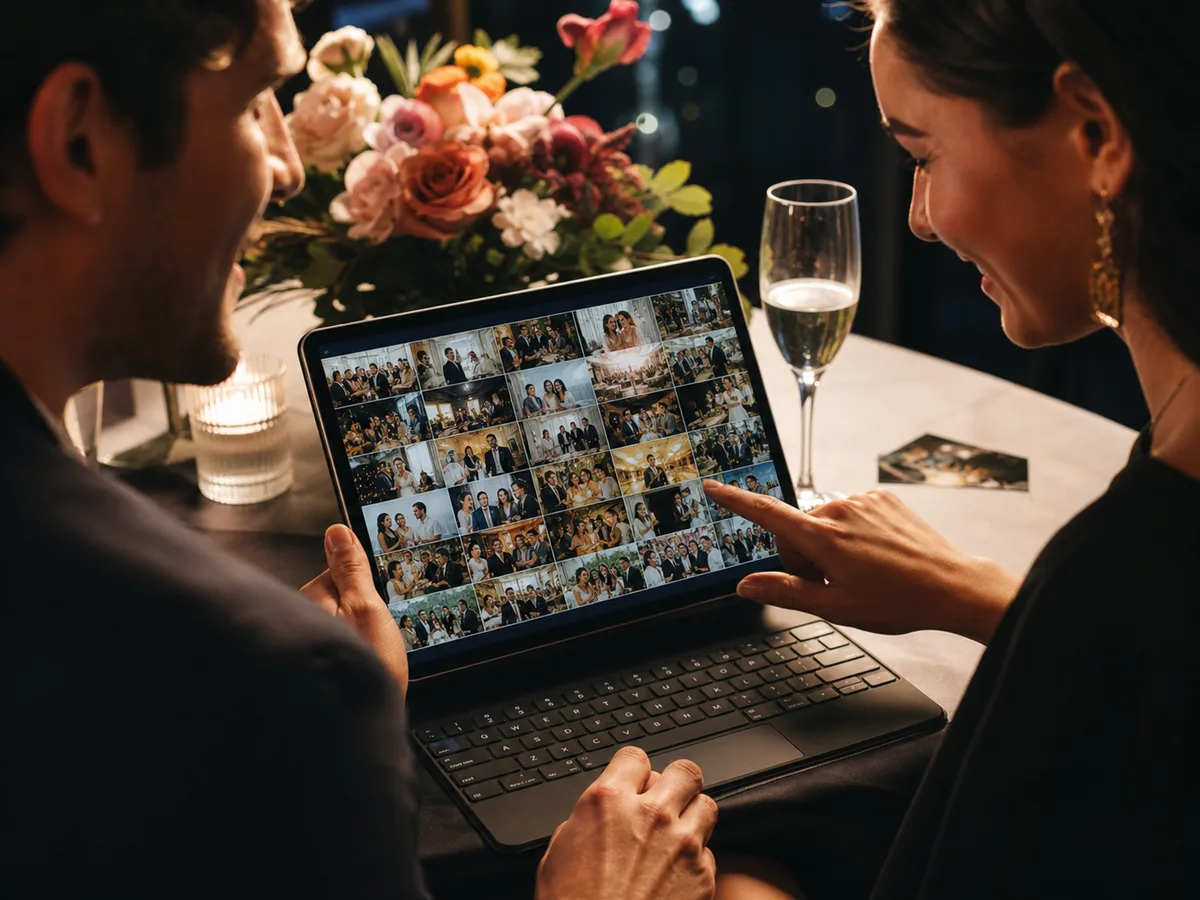
How moderation works
Automatic filtering
Inappropriate photos are filtered automatically before they appear publicly in the album.
Moderate yourself
In your dashboard you hide or remove photos. With Fancy you can make new photos reach the live photo wall only after you approve them.
Manage guests
You see who joins and can block a guest. A blocked guest can’t rejoin; you can lift the block later.
Unmoderated shared album or Snap-e?
| Shared album without moderation | Snap-e | |
|---|---|---|
| Inappropriate photos | Visible to everyone straight away | Filtered automatically before they appear publicly |
| Taking photos down | Depends on who posted the photo | You hide or remove any photo |
| What reaches the big screen | No control | Approve first with Fancy |
| Who can join | Anyone with the link | Open, email code or invite-only (Fancy) |
| Removing a guest | Depends on the service | Block a guest from your dashboard |
Automatic filtering doesn’t catch everything. As the host you can always step in yourself.
What appears on the photo wall
The live photo wall shows photos on a big screen, where everyone is watching. With approval switched on, new photos only reach the wall after you approve them.
That way guests can share freely in the album while you decide what the whole room sees. The live photo wall is part of the Fancy package.
Decide who can join
In your access settings you choose how guests join. Open: guests only enter their name; it is the fastest, but anyone with the link can join. Email: guests confirm their email address with a code; this is the default.
With Fancy you can also choose restricted access: only email addresses or domains you allow can join.
A temporary album
Your event gallery isn’t online forever. After the event it stays available for 7 days (Cosy) or 30 days (Fancy) to view and download.
Guests join with the details your access setting asks for, by default their name and email address. Read our privacy policy to learn how we handle data.
Tips
- Use approval for the photo wall when children, clients or colleagues are watching.
- Choose email access or restricted access if the QR code is displayed in a public place.
- During the event, check your dashboard now and then for photos waiting for approval.
Frequently asked questions
Are inappropriate photos blocked automatically?
Yes. Inappropriate photos are filtered automatically before they appear publicly. No filter is perfect, so as the host you can also hide or remove photos yourself from your dashboard.
Can I approve photos before they reach the screen?
Yes, with the Fancy package. Switch on approval and new photos only appear on the live photo wall after you approve them.
Can I control who shares photos?
Yes. You choose open access by name or access with an email code. With Fancy you can also allow only specific email addresses or domains. You can block a guest as well.
What happens to a blocked guest’s photos?
A blocked guest can’t rejoin the event. Photos the guest already shared stay in the album until you hide or remove them.
How long do the photos stay online?
The online gallery is temporary: after the event it stays available for 7 days with Cosy and 30 days with Fancy. Download the album in that period if you want to keep a copy.